 Skiff
Manual · Skiff 1.0 · every button, in order
Skiff runs chains of Audio Unit plug-ins on your Mac's output and microphone. One chain per device, per direction, switched from the menu bar.
01Getting started
You need macOS 14 Sonoma or later on Apple silicon or Intel, and an administrator password once, for the driver.
- Open the download and drag Skiff to Applications. The driver installer only runs from
/Applications/Skiff.app, so don't run it from the disk image. - Open Skiff. It lives in the menu bar; there's no Dock icon.
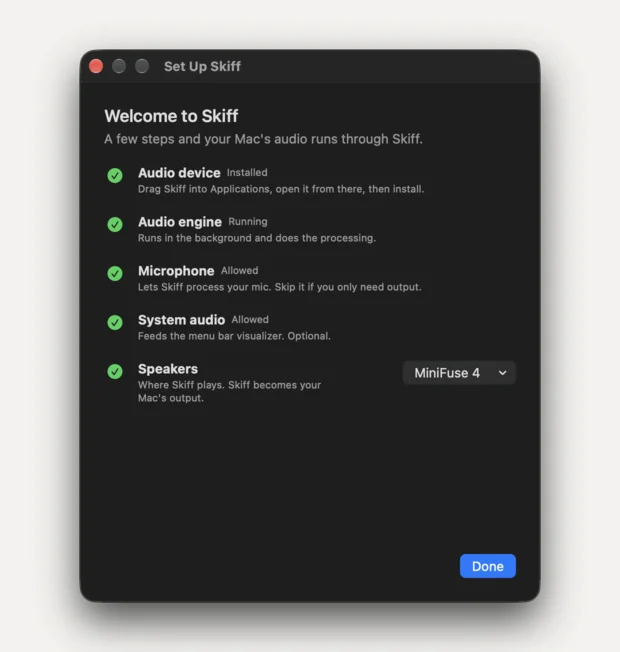
- Choose Settings… (⌘,), go to Setup & Repair, and click Install or Repair Driver. macOS asks for your password.
- Core Audio restarts, and every app's sound drops out for a second or two. A device named Skiff now shows up in Audio MIDI Setup and System Settings → Sound.
- Pick your headphones or speakers under Output, click Add Audio Unit, choose one, and click Apply.
Flip the Output switch on in the menu bar, and your Mac is playing through the chain.
02How audio flows
Skiff is three pieces. The app you click is only the editor. A background engine owns your hardware and runs the plug-ins. A small driver publishes the Skiff device that macOS plays into.
apps ──▶ Skiff device ──▶ engine: your chain ──▶ headphones
      mic  ──▶ engine: your chain ──▶ Skiff device ──▶ Zoom, OBS, …
With a route switched on, macOS's default device is Skiff, and Skiff plays into the real hardware. Switch it off and macOS goes straight to the hardware again, with Skiff out of the path. The menu always shows the real device underneath.
If the engine stops for any reason, the driver plays silence instead of hanging Core Audio.
04Settings
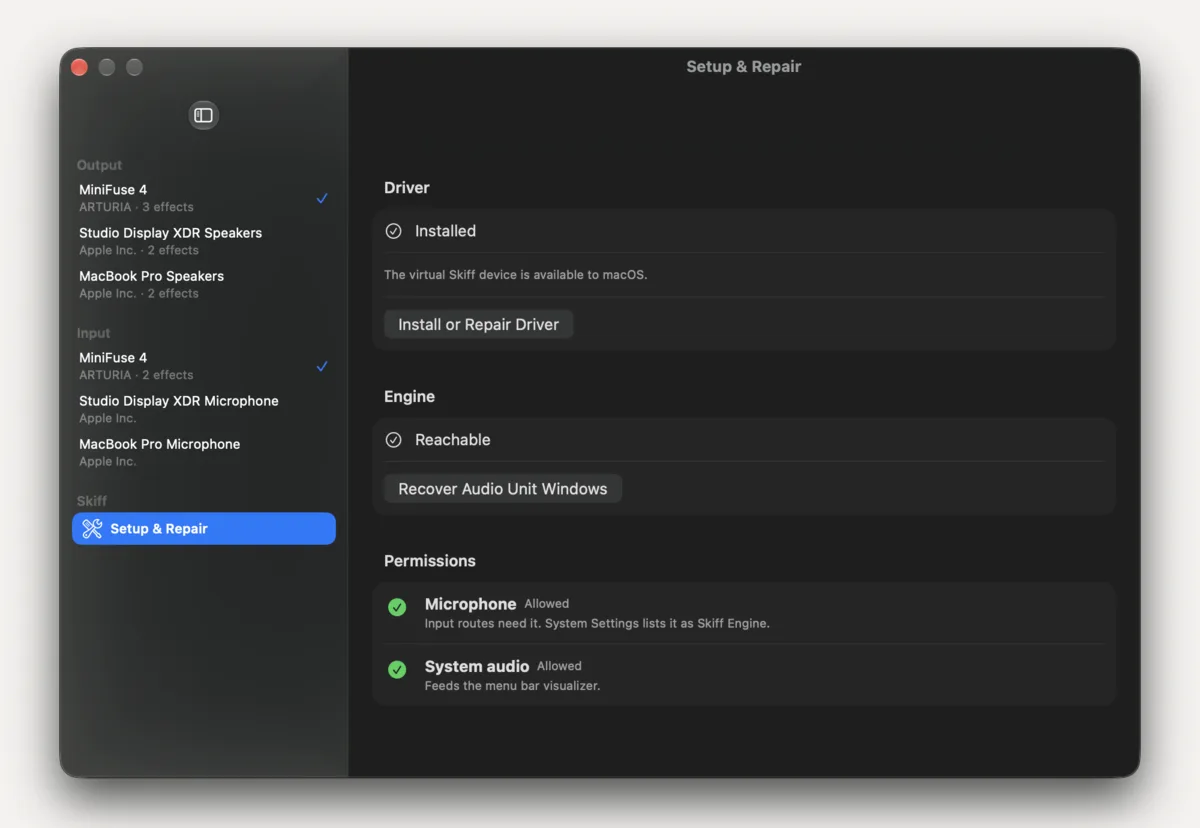
The sidebar lists your output and input devices, and a checkmark marks the one in use. A device you've built a chain for stays listed after you unplug it, chain intact and still editable: Device disconnected. Edits are saved.
Chains are keyed to the hardware, not its name or its slot, so they follow a device across reconnects and default-device changes. Use for Output or Use for Input switches macOS to the selected device. Changes you make in System Settings show up here too.
05Building a chain
Add Audio Unit lists every effect Audio Unit macOS can load, grouped by vendor and searchable. Apple's own come with macOS; anything else you've installed shows up beside them.
- Audio flows top to bottom. Drag rows to reorder them.
- Each row has an editor button, an on/off switch, and remove. A switched-off stage is skipped, not deleted.
- An empty chain reads No Audio Units. Audio passes through untouched.
Edits save as you make them and leave the live audio alone. Unapplied changes means what you see isn't what's playing yet. Click Apply, or Use Device & Apply when the device isn't in use, and the route reads Running once the engine matches.
Multichannel audio runs through the chain at full width when every plug-in accepts it. When one only takes stereo, the whole chain runs in stereo and the status line shows the fold.
06Plug-in windows
The editor button opens a plug-in's own window. Plug-ins without one get a plain list of their parameters. Stages that aren't running, because they're switched off or their device isn't in use, open a draft editor: change it now, hear it after Apply.
If a plug-in window gets stuck, Recover Audio Unit Windows closes them, restarts the plug-in host, and puts the running chain back.
07Presets
Save as Preset… keeps a named snapshot of a chain for that device and direction, plug-in settings and bypass included. Pick one in Settings and click Apply, or pick it from Presets in the menu bar, which applies it straight away.
The ⋯ menu beside a preset updates, renames and deletes it. Editing the live chain never changes a saved preset until you update it.
08Headphone EQ
Headphone EQ… sits in every output's chain. Search AutoEq's recommended profiles by model, or Import file… to load a ParametricEQ.txt you already have.
Add EQ appends one AUNBandEQ stage with the profile's preamp, peak filters and shelf filters. The rest of the chain stays as it was. Turn on Process audio, click Apply, and save it as a preset if you swap headphones.
A profile with a filter type or value AUNBandEQ can't take fails the import and changes nothing. The search needs the internet; the EQ doesn't.
09Microphone
Input chains work the same way. Every app that records from Skiff hears the processed signal: Zoom, FaceTime, OBS, Voice Memos. A mono mic feeds both channels.
Monitor, in the toolbar of an input device, plays the mic after its chain through your selected output, so you hear what the call hears. It mixes with whatever else is playing and starts off each time Skiff launches.
Input processing needs the mic running at Skiff's rate. Set both in Audio MIDI Setup.
10Speakers and Atmos
The Skiff device publishes every layout from mono to 7.1.4 and 9.1.6, in Core Audio's channel order. When you pick an output, Skiff takes on that device's speaker layout from Audio MIDI Setup → Configure Speakers, so apps render straight to your real speakers.
Channels travel by speaker label, not position. Smaller systems get folds: heights into the nearest speaker below them, rears into the sides, wides into the fronts. The LFE is never folded. Atmos and formats has every layout and every fold.
BedHeightLFE
11Sample rates
Skiff runs at 44.1, 48, 88.2, 96, 176.4 or 192 kHz. Set its rate in Audio MIDI Setup like any other device. When you pick hardware, Skiff switches it to the same rate so nothing resamples. Hardware that can't switch, like most Bluetooth headphones, is converted by Core Audio.
A route with no running plug-ins, 1:1 channels and matching rates reads Bit-perfect.
12Visualizer
The menu-bar icon is six bars measured from the physical output, bypassed playback and Monitor included. They settle when it's quiet.
Themes: No theme (monochrome), Rainbow, Aurora, Ocean, Solarized Dark, Gruvbox, Single Color with a hex value of your own, and Album Art, colored from the cover of what's playing. Reduce Motion freezes animated colors.
It needs macOS 14.2 or later and permission to capture system audio. Samples are analyzed in memory and never saved.
13Setup & Repair
Settings → Setup & Repair shows the driver, the engine and microphone permission, with the next step if one is needed.
Install or Repair Driver is always safe to run again. It replaces the driver in place and keeps your chains and presets. It also clears out SoundBoard, Skiff's name before release, if it finds it.
14Permissions
| Asks for | Why |
|---|---|
| Administrator password | Once, to install the driver in /Library/Audio/Plug-Ins/HAL. |
| Microphone | To run input chains. |
| System audio recording | Only for the visualizer. |
Skiff collects nothing. The one request it makes is AutoEq's index, when you search. Privacy has the rest.
15Trial and license
The download is the trial and the full app. Everything works. After 20 minutes Skiff mixes noise into processed audio; relaunch to reset the clock. A license key takes the noise away for good.
A license is $9.99 once, for you on all your Macs, with every future update included. After checkout, Open in Skiff activates it. On your other Macs, open the link in your license email or paste the key into Settings → License.
 $9.99
once
16Quitting and removing
Quitting, or force-quitting, stops both routes, closes plug-in windows, and hands your physical devices back to macOS. The engine sits idle until Skiff opens again, then resumes where it was.
To remove Skiff entirely, follow the steps in Support.